Deep Dive: How UniFi CLI Commands Enhance Your Network Control
Unlock advanced control over your UniFi devices by exploring essential command-line interface (CLI) tools. This guide covers powerful commands for everything from basic info and troubleshooting to manual firmware upgrades and system diagnostics.


In our previous articles, we've explored UniFi's Debug Tools: How to Enable and Use Them and provided a guide on How to SSH into Your UniFi Devices for direct access. Now that you're comfortable connecting to your UniFi switches and access points, it's time to uncover some of the powerful command-line interface (CLI) commands that can help you manage and troubleshoot your network more effectively.
Basic Information & Management Commands
These commands are fundamental for quick diagnostics and initial setup.
help- Purpose: Provides a comprehensive list of all available UniFi-specific commands that can be executed on the device's CLI. It's your quick reference guide!
- Usage:
help
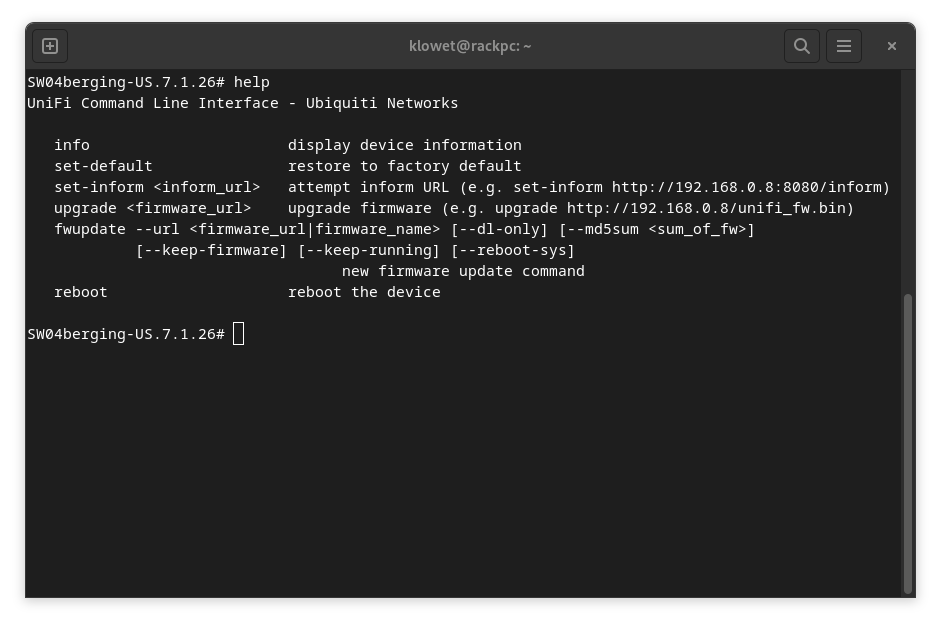
info- Purpose: Displays crucial details about the UniFi device, including its model number, firmware version, MAC address, IP address, hostname, uptime, NTP (Network Time Protocol) status, and its current connection status with the UniFi Controller.
- Usage:
info
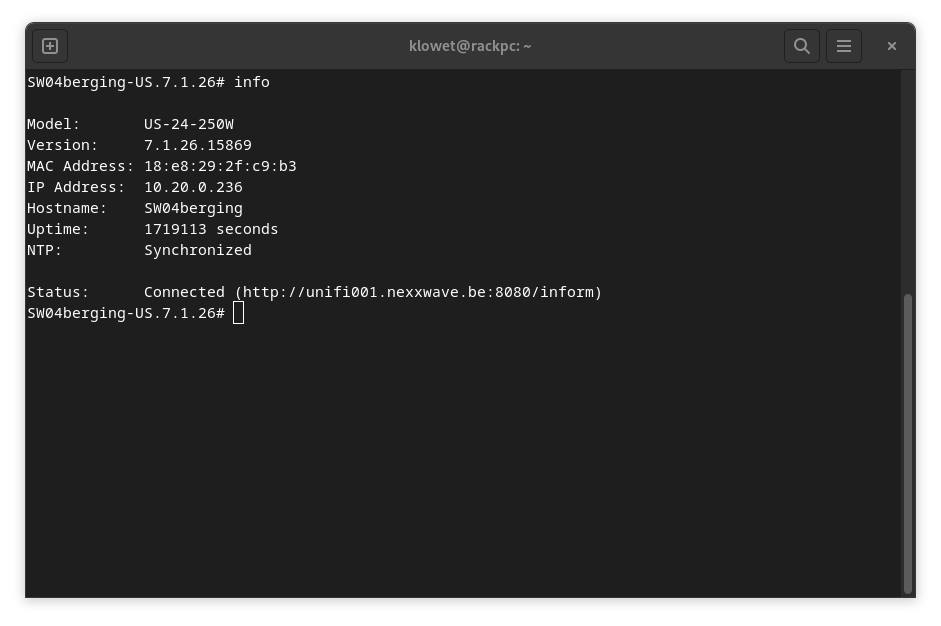
- Example: If your
infooutput shows an uptime of1719113 seconds, you can quickly get a more human-readable format by simply typinguptime. uptime- Purpose: Provides the system's uptime in a more easily digestible format (e.g., days, hours, minutes), rather than just raw seconds.
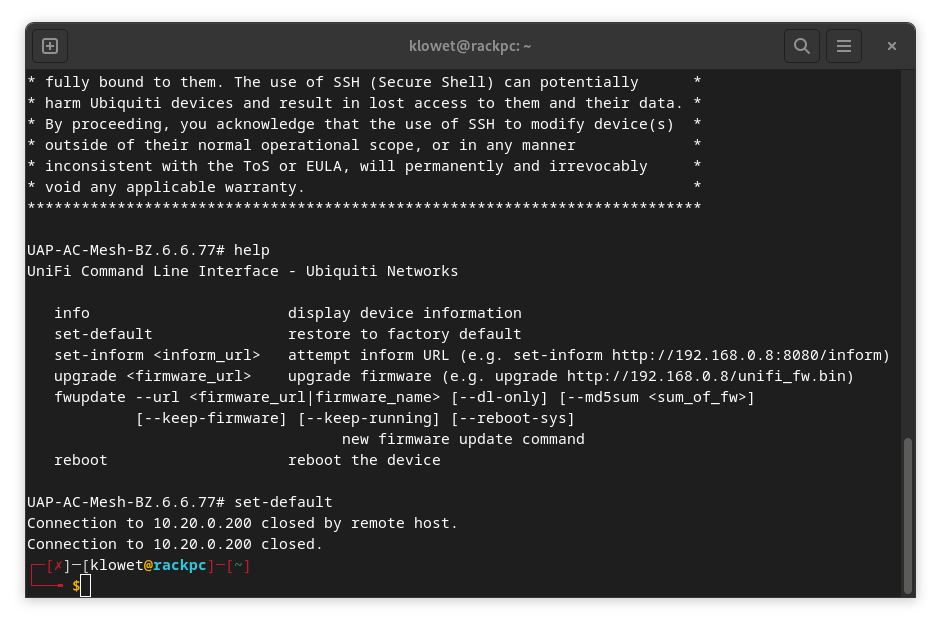
set-default- Purpose: Erases the entire configuration of the device, effectively performing a factory reset. The device will then reboot and return to its default factory settings. Caution: This command executes immediately without asking for confirmation. Use with extreme care!
- Usage:
set-default
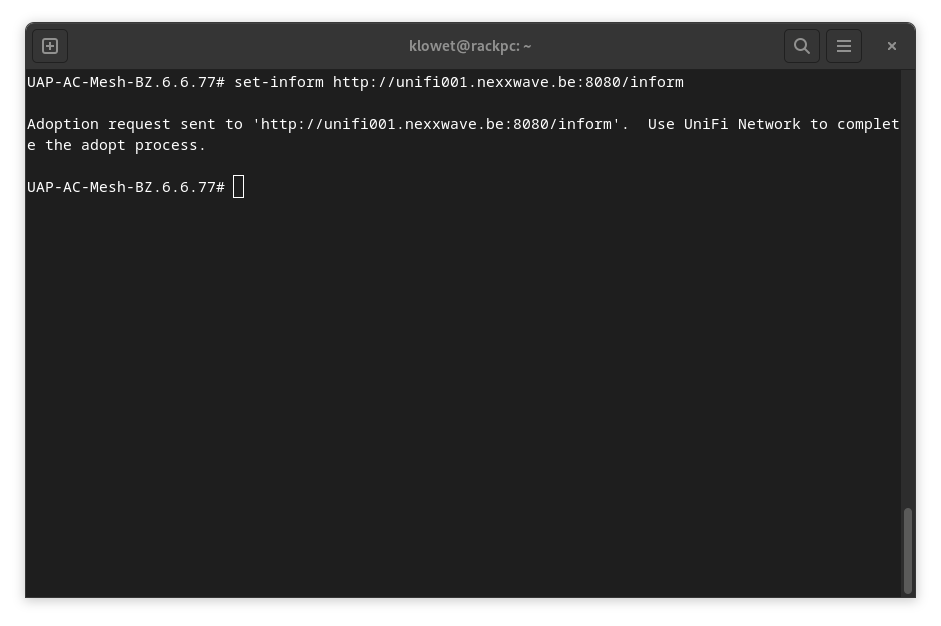
set-inform- Purpose: Used to point a UniFi device to your UniFi Controller for adoption or re-adoption.
- Usage:
set-inform http://m123456.nexxplane.app:8080/inform(replace with your controller's address). - Detailed Information: For a complete walkthrough on how to adopt a UniFi device, refer to our blog article How to Adopt a UniFi Device: A Step-by-Step Guide.
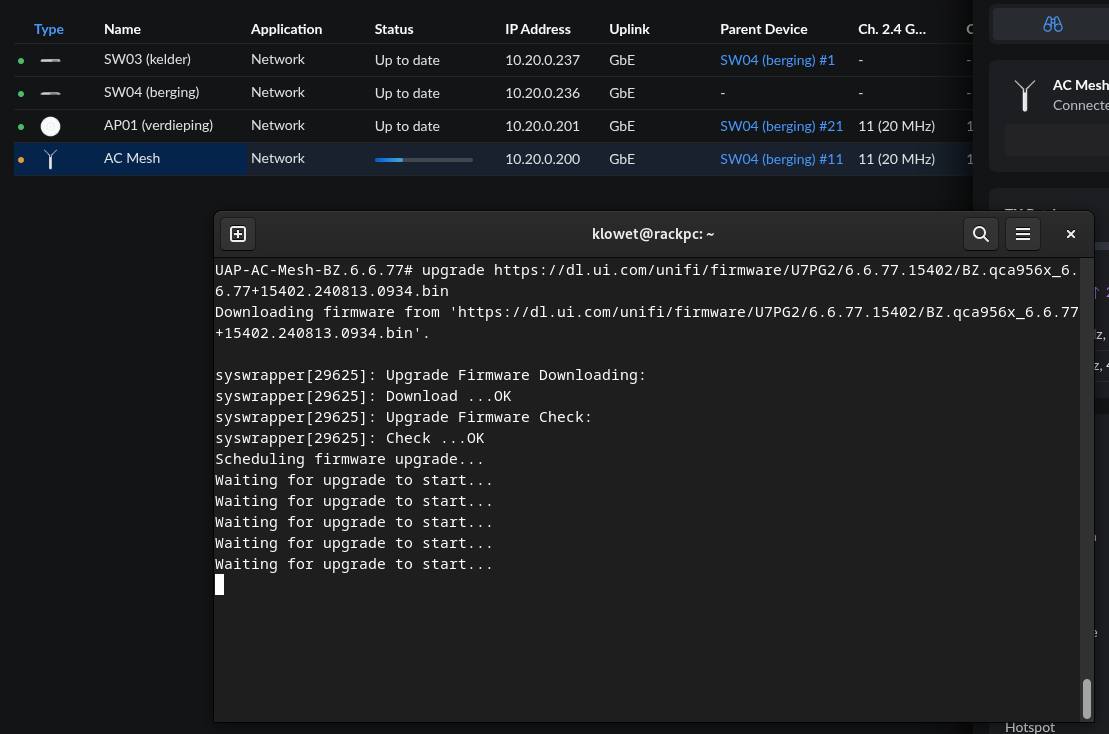
upgrade- Purpose: Allows you to manually install a specific firmware version on the device by providing a direct URL to the
.binfirmware file. This is useful for downgrades, beta firmware, or when automatic updates fail. - Usage:
upgrade [URL_to_firmware.bin] - Important: Always find the correct firmware version for your specific UniFi device model on ui.com/releases. Installing incorrect firmware can permanently damage your device. The device will download the firmware, install it, and automatically reboot after completion.
- Purpose: Allows you to manually install a specific firmware version on the device by providing a direct URL to the
Leveraging Underlying Linux Commands
UniFi Access Points and Switches run on a derivative of the Linux operating system (based on OpenWRT/LEDE), which means many standard Linux commands are also available and incredibly useful for deeper diagnostics.
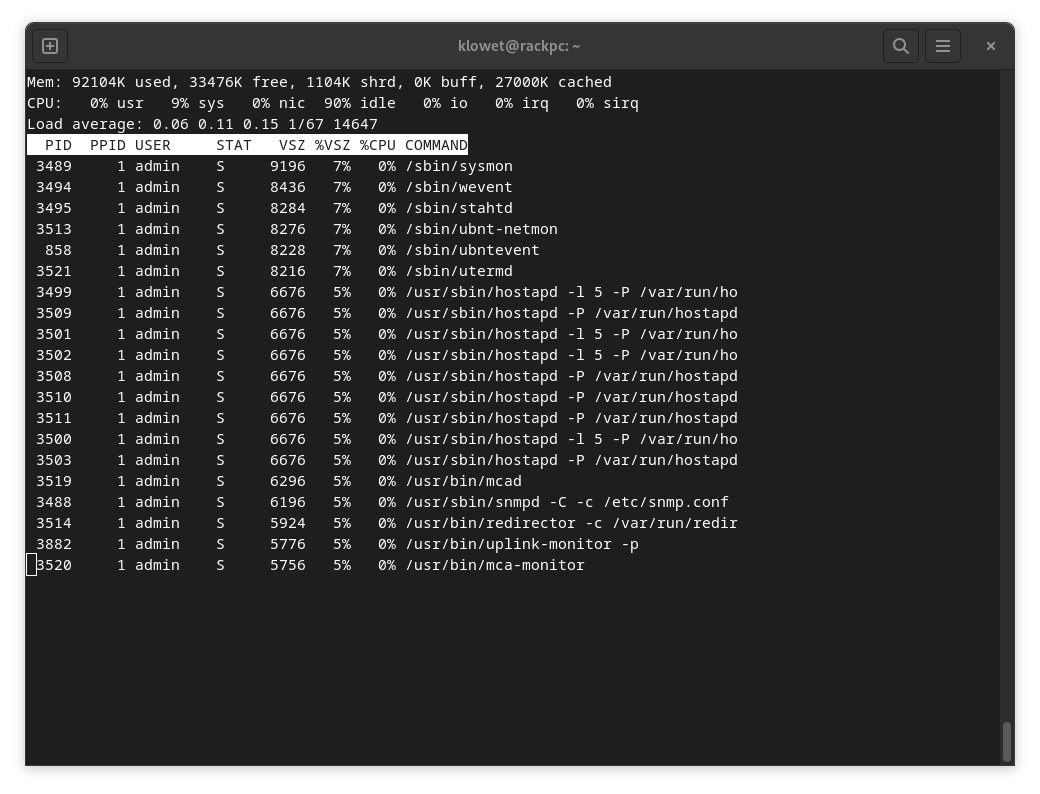
top- Purpose: Displays real-time information about running processes, CPU usage, memory usage, and load average. Excellent for checking device performance.
- Usage:
top
- Browse Log Files:
- Purpose: Accessing system logs can provide invaluable insights into device behavior, connection issues, or client interactions.
- Usage: Log files are typically found in the
/var/log/directory. For example,cat /var/log/messagescan be very handy for debugging problematic clients by monitoring their interaction with the AP. You can also usetail -f /var/log/messagesto watch the log in real-time.
- Checking CPU Information:
- Purpose: Curious about the specific processor inside your Access Point or Switch?
- Usage:
cat /proc/cpuinfo
- Verifying NTP (Time Synchronization):
- Purpose: If your device's time is incorrect (which can cause issues with logs, adoption, and certificates), you can check which NTP time server it's trying to use. Note: The NTP time server settings for UniFi devices are configured in your UniFi Controller under Settings > System > General.
- Usage:
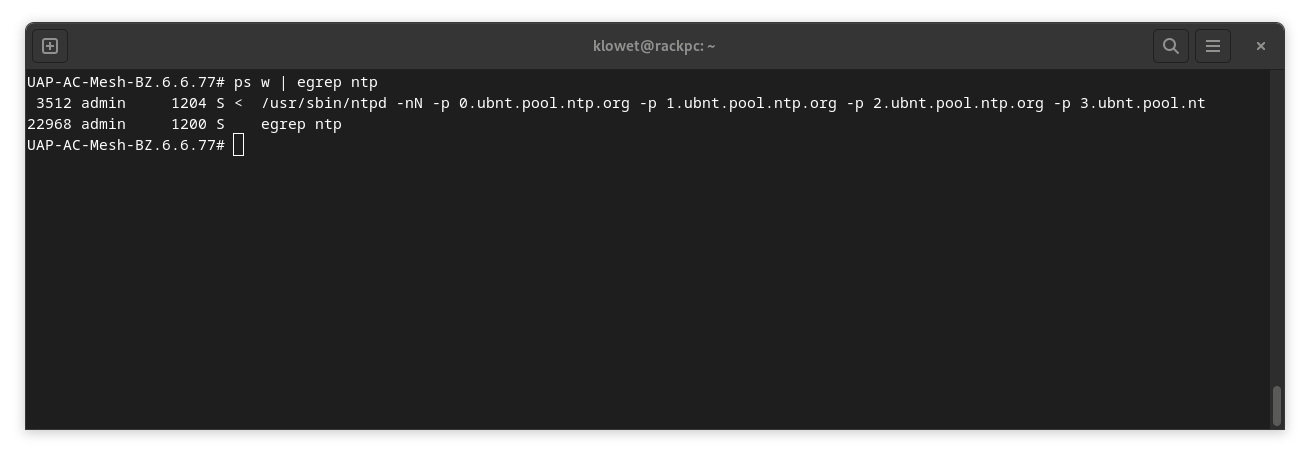
ps w | egrep ntp