How to SSH into Your UniFi Devices
Ever wondered how to get direct access to your UniFi switches and access points? This guide will walk you through the essential steps of logging in via SSH, whether your device is fresh out of the box or already part of your network.

Adopting a UniFi device into your UniFi cloud controller often involves logging in via SSH and running the set-inform command. While we'll cover the full adoption process in another blog post, today, we're focusing on a foundational skill: how to log in to a UniFi device using SSH. This guide will cover both brand-new devices and those already adopted with custom SSH credentials.
Finding Your UniFi Device's IP Address
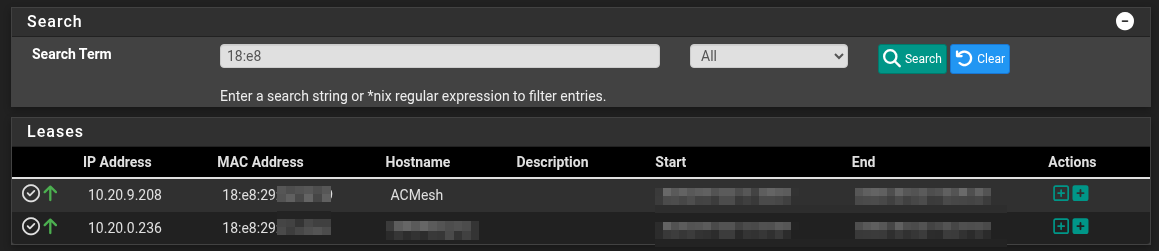
UniFi devices don't have screens or monitor ports, so finding their IP address isn't as straightforward as plugging in a display. The easiest way to discover a device's IP is by checking your network's DHCP leases. You'll need to note the MAC address of your UniFi device (usually found on a sticker on the device itself) and then look it up in your DHCP server's lease table to find its assigned IP address.
SSH Connection to a Brand-New UniFi Device
The method for establishing an SSH connection depends on your computer's operating system.
- macOS and Linux distributions: You can simply use the built-in Terminal application.
- Windows: We recommend using a tool like PuTTY.
The screenshots below were taken using Debian Linux in the Terminal and PuTTY for illustration. No matter your OS, the credentials you'll always use to connect to a new, out-of-the-box UniFi device are:
- Username:
ubnt - Password:
ubnt(For new devices, the default password can usually be found on a sticker on the back of the unit)
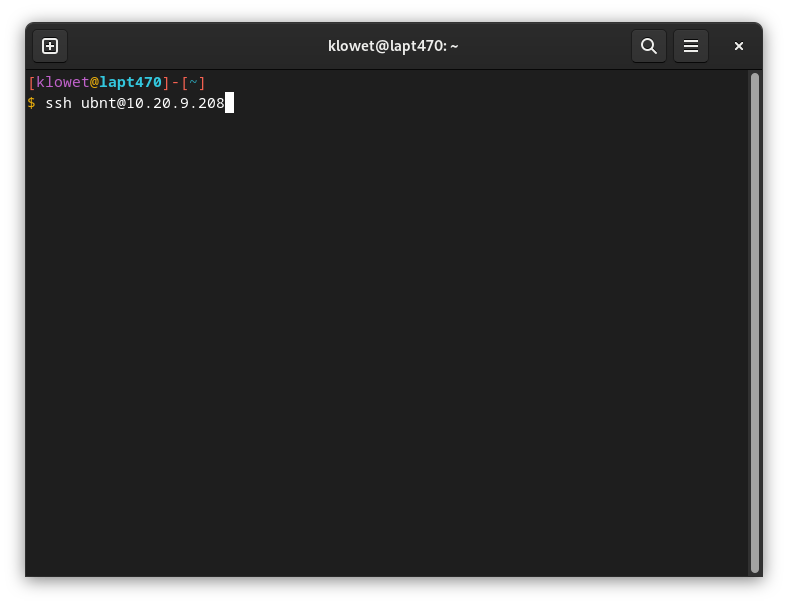
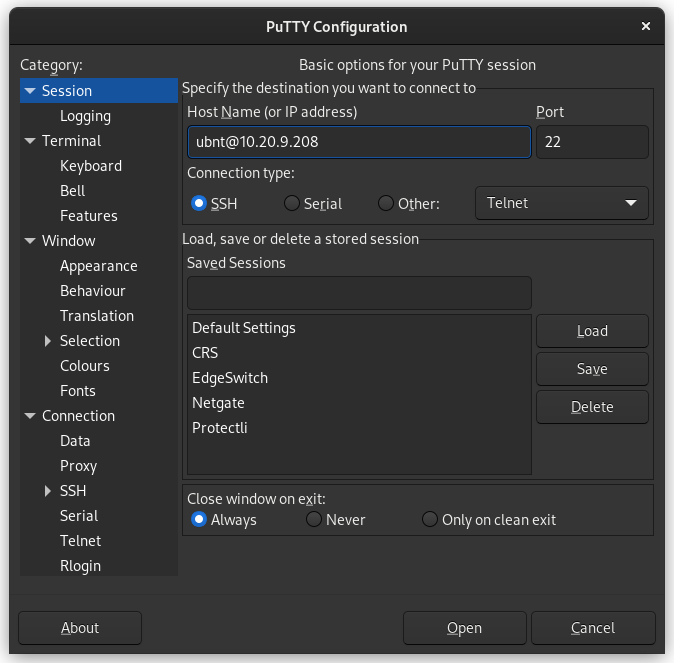
Step-by-Step SSH Login (New Device)
The following steps continue with examples from Debian Linux, but the process is very similar for macOS Terminal or PuTTY.
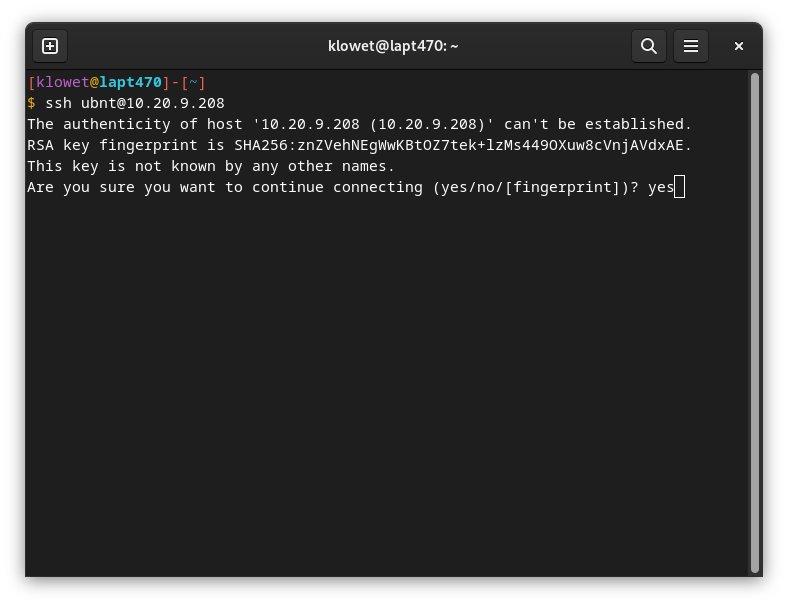
Trust the Key: You'll first be asked if you trust the device's key and want to continue connecting. Type 'yes' and press Enter.
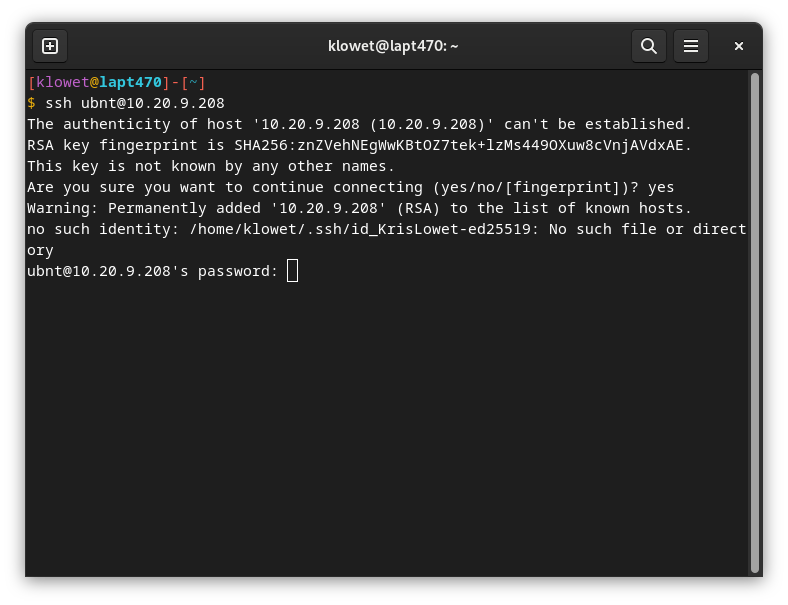
Enter the Default Password: Next, you'll be prompted to type in the password. Enter 'ubnt' and press Enter. It's normal for the password not to be displayed on screen – you won't see asterisks or dots as you type.
Success: You'll now see a welcome message, indicating you've successfully logged in!
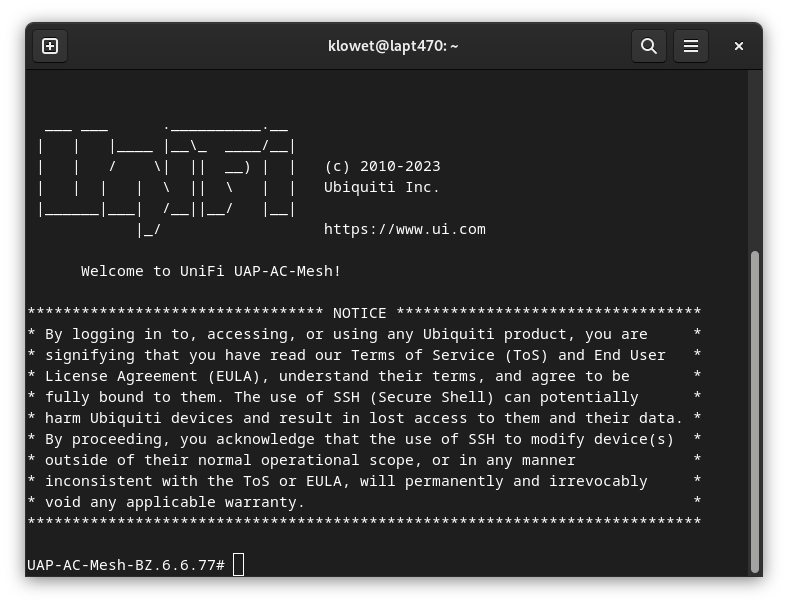
At this point, the device is not yet adopted by your UniFi Controller. For a detailed explanation of the adoption process, please refer to our dedicated article: How to Adopt a UniFi Device: A Step-by-Step Guide.
Logging In with SSH After Adoption
Once a UniFi device has been adopted by your UniFi Controller, the default SSH login credentials (ubnt/ubnt) are no longer valid. Instead, you can log in via SSH using one of two methods: password authentication or SSH key authentication.
UniFi configures password-based login as the default. You can find these credentials within your UniFi Controller:
- Navigate to your UniFi Devices section.
- Click on 'Device Updates and Settings' (located at the top right).
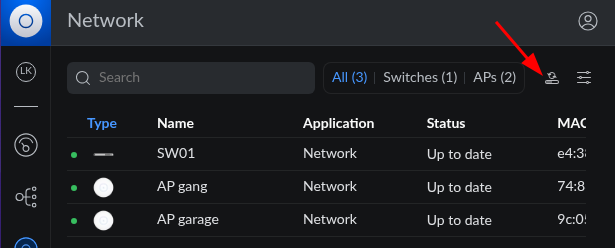
1. Logging In via Username/Password
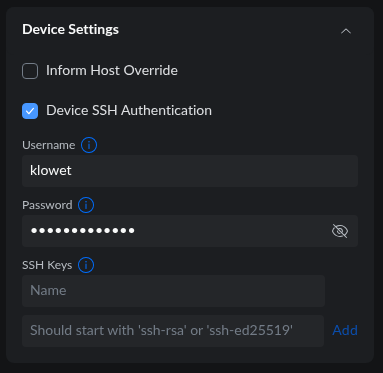
Scroll down to the 'Device Settings' section. You'll see that 'Device SSH Authentication' is typically checked. The 'Username' field will default to the username of the account that created the UniFi Site. The password, however, is automatically and randomly set per site by UniFi.
This unique username/password combination is pushed to all existing and new UniFi devices within that site. When you adopt a new UniFi device, you'll notice that any active SSH sessions using 'ubnt' will be logged out. From that point on, you'll need to use this site-specific username and password to establish new SSH connections. Logging in with 'ubnt' will no longer be possible.
2. Logging In via an SSH Key
A more secure option for accessing your UniFi devices is to use an SSH key. This guide won't delve into the specifics of what an SSH key is or how to generate one; we'll assume you already have an SSH key pair. If you need to create one, check out our detailed guide: Step-by-Step: Making SSH Keys for UniFi Devices. UniFi supports RSA and Ed25519 type keys.
Within the 'Device Settings' (as shown in the previous screenshot), you'll find an option at the bottom to add SSH keys. Here's what to provide:
- Name for your SSH Key: This is just a label for you to identify the key within the UniFi Controller.
- Paste your Public SSH Key: Copy your public key and paste it into the designated field, then click 'Add'.
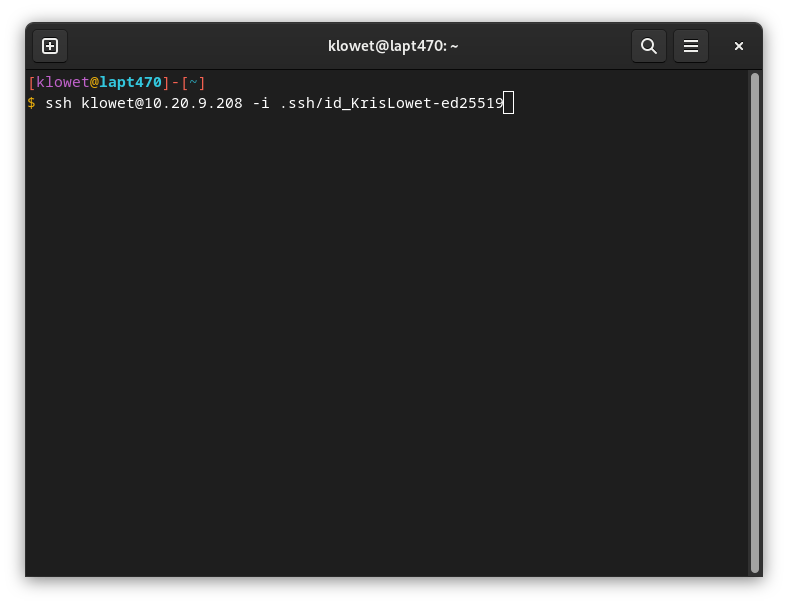
This SSH key will now be distributed to all UniFi devices within that site. You can add multiple SSH keys (e.g., for different administrators or colleagues). To log in via SSH using a key, you'll simply refer to the correct SSH private key and provide its passphrase if one is set.
Which Login Method is Best?
For enhanced security, logging in via an SSH key is the safest method. An SSH key pair combines a public key (stored on the device) and a private key (kept securely by you). Since only you possess both the private key and its decryption passphrase, it offers a much stronger authentication mechanism than a simple password. We strongly recommend leveraging SSH keys for accessing your UniFi devices whenever possible.