How to Adopt a UniFi Device: A Step-by-Step Guide
You've got a new UniFi device, and now it's time to bring it into your network's fold. This guide will walk you through the essential steps of adopting your device into your UniFi Controller using the set-inform command via SSH.

In a previous blog post, we explained how to connect to both new and already adopted UniFi devices via SSH. In this article, we'll dive into the essential process of adopting a new UniFi device into your UniFi Controller using the set-inform command via SSH.
What Does 'Adopting' a Device Mean?
So, you've got a new UniFi device you want to integrate into your network. The process of adding this device to your UniFi Controller so it can be managed centrally is called 'adopting' the device. This brings it under the control of your specific UniFi network site.
The Adoption Steps
We'll assume you already know how to log in to your new UniFi device via SSH. If you're unsure or need a refresher, be sure to read our dedicated blog post for a detailed walkthrough.
- Log in via SSH: Log in using the default username 'ubnt' and password 'ubnt'. You'll then see a welcome screen. For new devices (since 2024), the default password can usually be found on a sticker on the back of the unit. You'll then see a welcome screen.
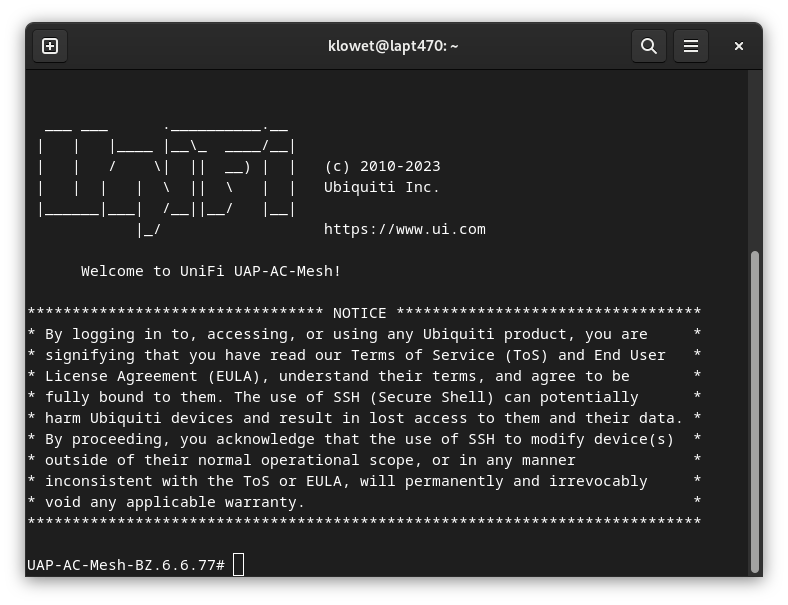
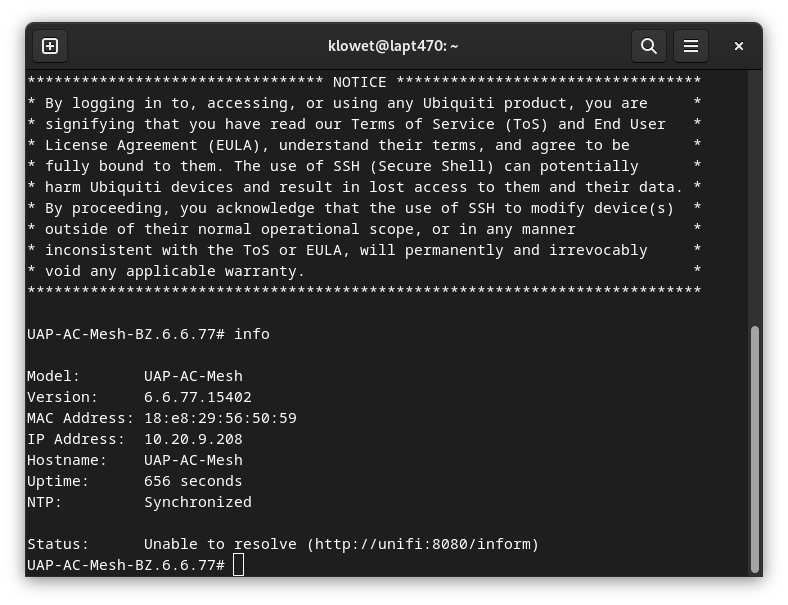
- Check Device Info (Optional but Recommended): Type
infoand press Enter. You'll likely see a status like'Unable to resolve'along with a default DNS address. This confirms the device isn't yet connected to a controller.
- Execute the
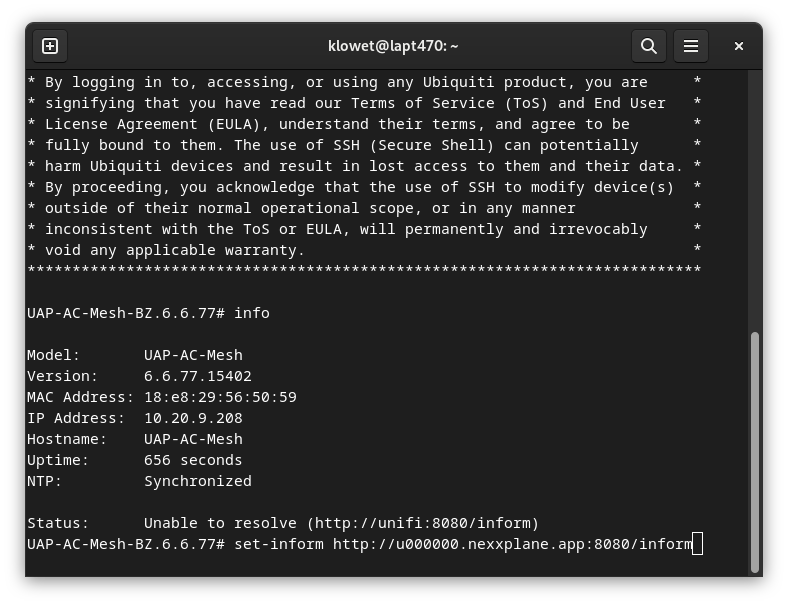
set-informCommand: Type the following command and press Enter:
set-inform http://your.unifi.controller:8080/inform
Important Notes:
- Always use
httpand nothttpsin this command. - For your UniFi Controller's address, you can use either a DNS FQDN (Fully Qualified Domain Name) or an IP address. We highly recommend using the DNS FQDN. This way, if your controller's IP address ever changes, you won't have to manually update the IP on every single UniFi device.
- Remember to append
:8080/informafter your controller's DNS address or IP address.
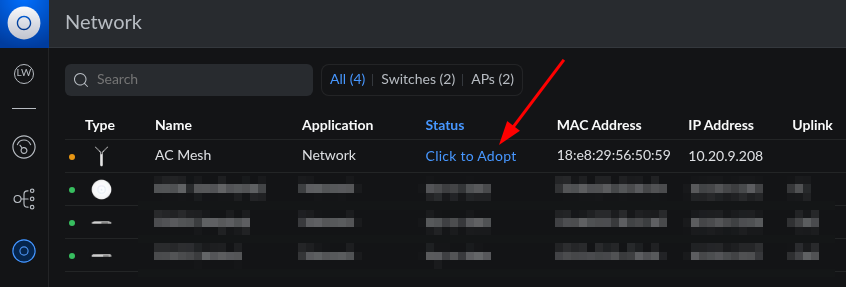
- Initiate Adoption in the UniFi Controller: Go to your UniFi Controller's web interface and open the site where you want to add the new UniFi device. Navigate to the 'Devices' section and look for your device listed as "Pending Adoption" or similar. Click 'Adopt' (or 'Click to Adopt').
Wait a minute or two for your device to be fully adopted (its 'status' will change several times). The orange indicator light next to your device will turn green once it's ready. UniFi will also immediately perform or suggest a firmware update if needed.
Your Device is Now Ready!
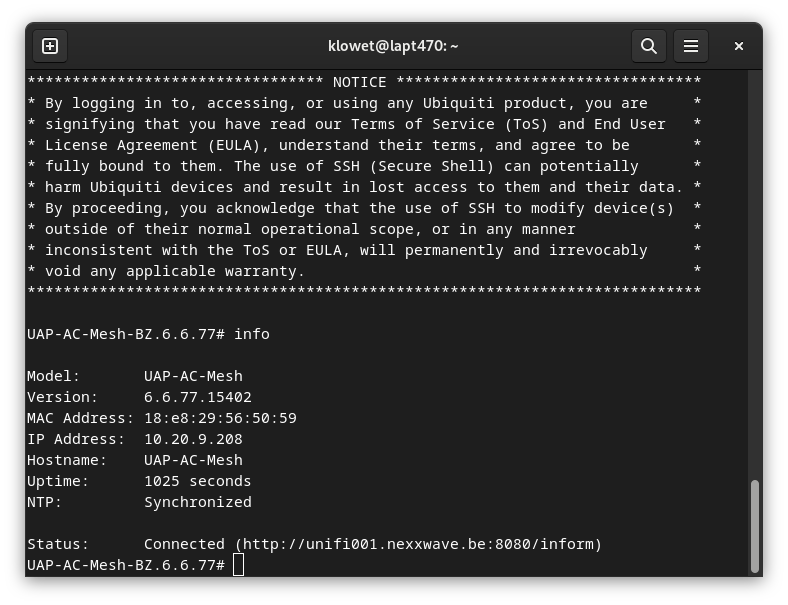
Congratulations! Your device is now ready for use. If you log into your UniFi device via SSH again and run the info command, you'll now see that its status is 'Connected'.
Troubleshooting Adoption Issues: What Could Be Wrong?
If your device isn't adopting as expected, here are some common culprits and solutions:
- Firewall Ports: Ensure that at least these network ports are open and directed towards your UniFi Controller:
- 8080/TCP: For the primary connection to the controller.
- 123/UDP (NTP): For Network Time Protocol (time synchronization).
- 53/TCP+UDP (DNS): For Domain Name System resolution.
- DNS Resolution: Verify that your UniFi device has received a valid DNS server assigned via DHCP. Without proper DNS, it won't be able to find your controller by its FQDN.
- Time Synchronization (NTP): Check if your DHCP server is providing a time server, or ensure that NTP access to the internet is open from your UniFi device. Incorrect time can cause adoption failures.
- Previous Adoption: If the UniFi device was previously adopted in the same UniFi Controller or site, you must first remove it from that configuration before it can be adopted into a new one.
- Outdated Firmware: The firmware on your UniFi device might be too old to communicate correctly with your controller. If this is the case, you can manually install the latest firmware using the
upgradecommand via SSH. Note that firmware is device-specific, so you'll need to find the correct version for your model on the official Ubiquiti releases page: https://community.ui.com/releases.