UniFi Controller on Windows: Your Complete Installation Guide
As you might have read in a previous blog post, you can install the UniFi Controller on your own server, physically within your office environment. It is not necessary - and also not recommended - to install the controller software on your personal PC or laptop.

While we generally recommend Linux for its robust performance, we understand that many IT environments are built on Windows. If you're more comfortable managing a Windows server, this guide is for you! We'll walk you through the essential steps to get your UniFi Controller up and running smoothly on Windows 11 or Windows Server 2025.
Hardware Requirements for Windows
Even on Windows, the core hardware requirements for your UniFi Controller remain. However, to ensure optimal performance and stability, especially given Windows' resource usage, we have some updated recommendations:
- Processor: A 64-bit processor is a must. For desktop-grade hardware, an Intel i5 or i7 is a solid choice. If you're using a dedicated server, an Intel Xeon D or AMD Ryzen will provide the necessary power.
- RAM: While 2 GB is the absolute minimum, we strongly advise at least 4 GB of RAM, and ideally 8 GB, for a Windows-based UniFi Controller. This extra memory will ensure smoother operation.
- Storage: A minimum of 20 GB of storage space is required.
- Network: A 100 Mbps wired network connection is essential for reliable communication.
- ECC Memory (Recommended for Physical Servers): If you're running on physical server hardware, we highly recommend using ECC (Error-Correcting Code) memory. This is particularly beneficial because the UniFi Controller relies on a MongoDB database, and ECC memory helps prevent data corruption, ensuring your network data remains intact.
Navigating Firewall Settings: Opening the Right Doors
To ensure your UniFi Controller can communicate effectively and securely with your UniFi devices and allow you to manage your network seamlessly, you'll need to configure your Windows Firewall to open specific network ports.
Here are the crucial ports you'll need to allow:
- For UniFi Device Communication:
- 3478/UDP (STUN): Enables communication across various network configurations.
- 8080/TCP (Application Communication): The primary port for devices to communicate with the controller.
- For Management Access:
- 8443/TCP (UniFi Web Interface GUI): This is the port you'll use to access the UniFi Controller's web-based management interface.
- 6789/TCP (Mobile Speed Test): For UniFi's mobile speed test functionality.
- For Guest Portal Functionality:
- 8880/TCP (HTTPS Redirection): For guest portal redirection over HTTPS.
- 8843/TCP (Guest Portal): The secure port for the guest portal itself.
- For Layer 2 Discovery (Optional for Local Controllers):
- 1900/UDP (Discovery): If you want your controller to be discoverable on Layer 2 of your network, opening this port can be helpful.
For a comprehensive list of all potential network ports used by UniFi, you can refer to the official Ubiquiti documentation here.
Installation Steps
Now that you're ready, let's get the UniFi Controller installed. First, download the latest UniFi Controller (also known as UniFi Network Server) software from this page. Once downloaded, simply start the installation process like you would with any other Windows application.
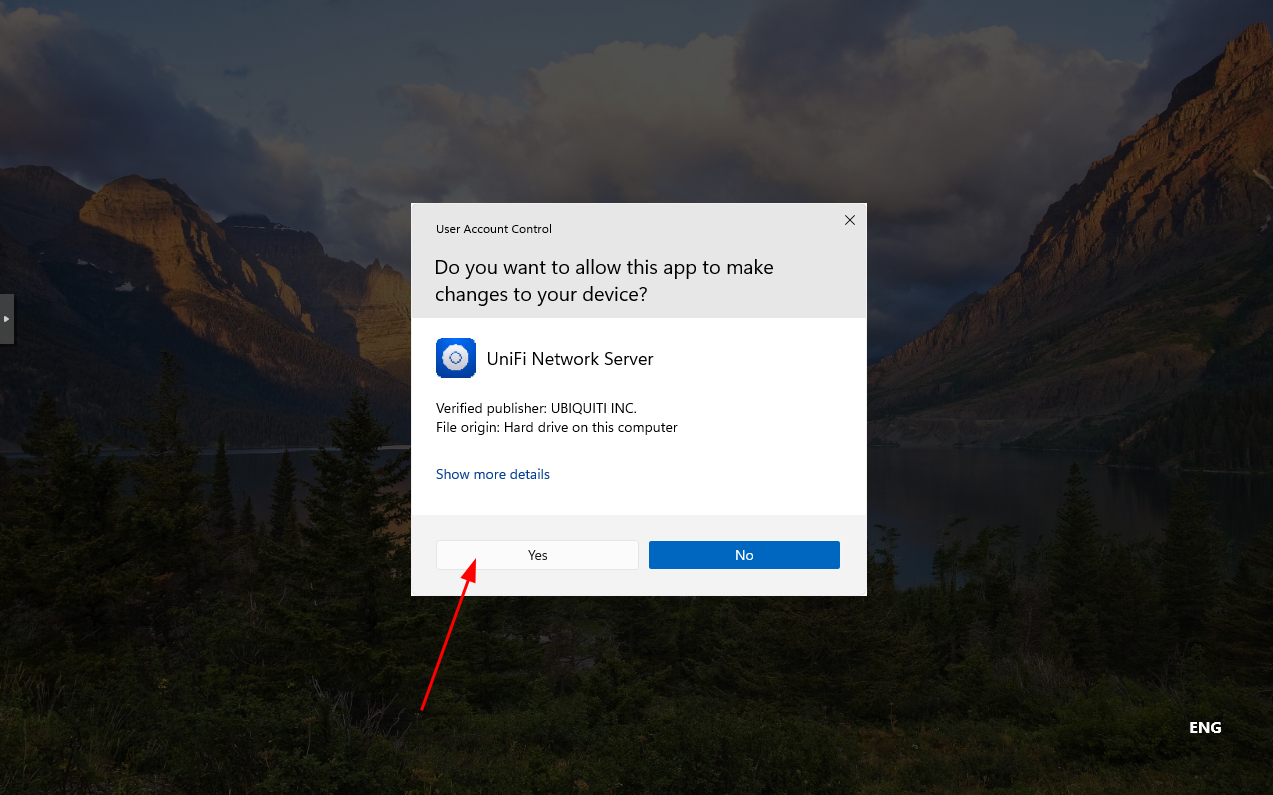
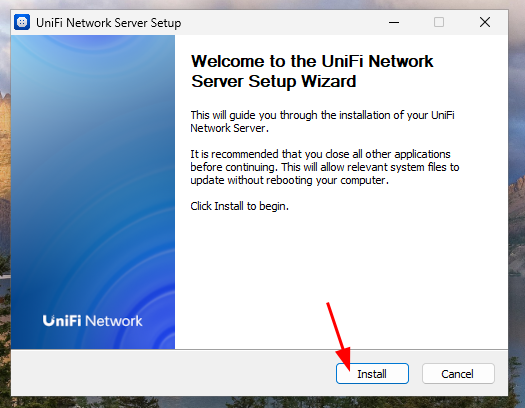
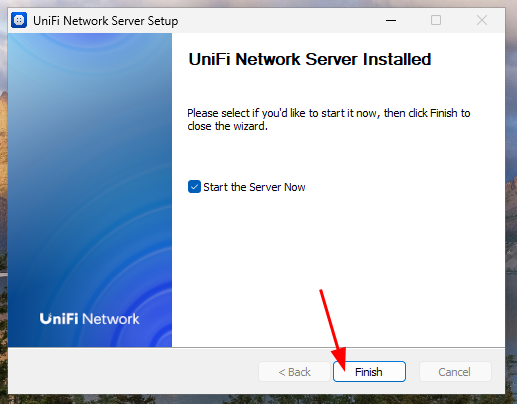
Once the installation wizard finishes, click 'Finish'.
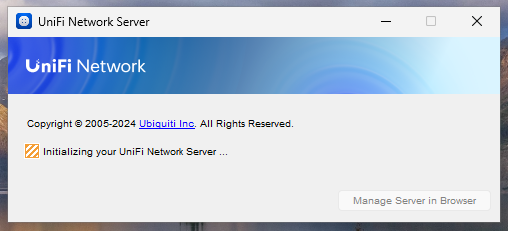
Your UniFi Controller is now starting up. This might take a few minutes.
Once the UniFi Controller has successfully started, click 'Manage Server in Browser'. Keep in mind that this program, the 'UniFi Network Server,' needs to remain running in the foreground. Do not close it, or your controller will become unreachable
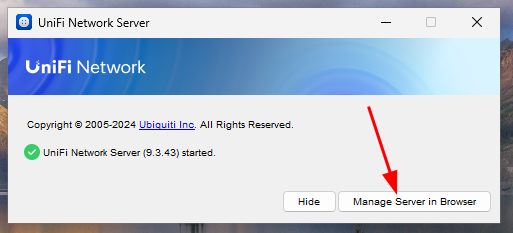
Your default web browser will then open to the address http://127.0.0.1:8080. UniFi recommends using Google Chrome for the best experience.
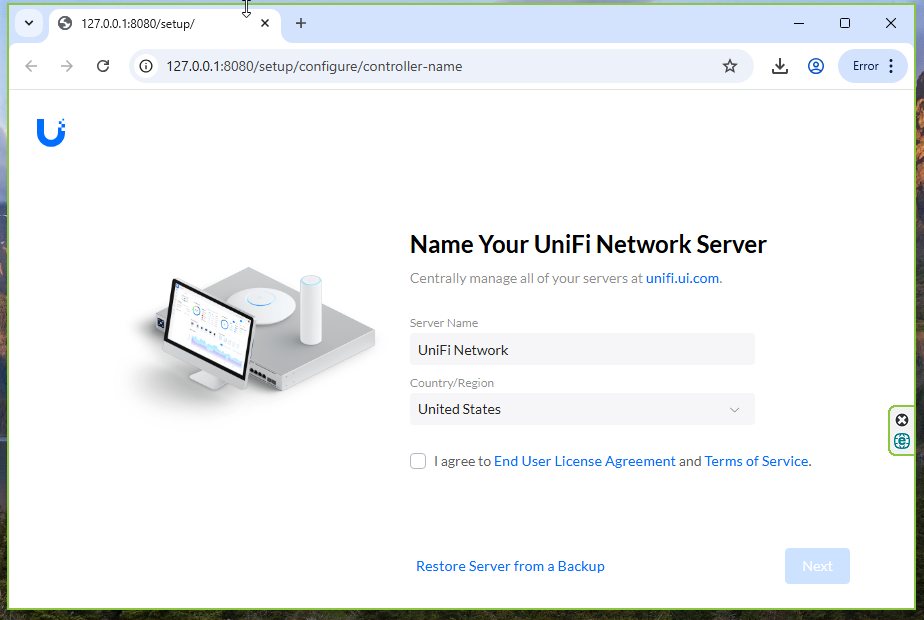
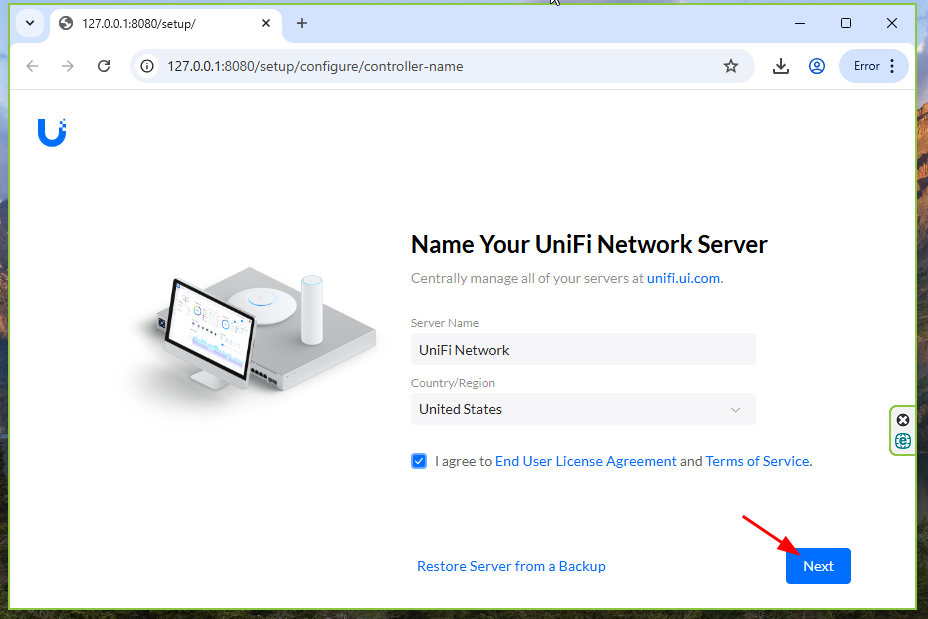
Give your UniFi Controller a name and select your country. Then, click 'Next'.
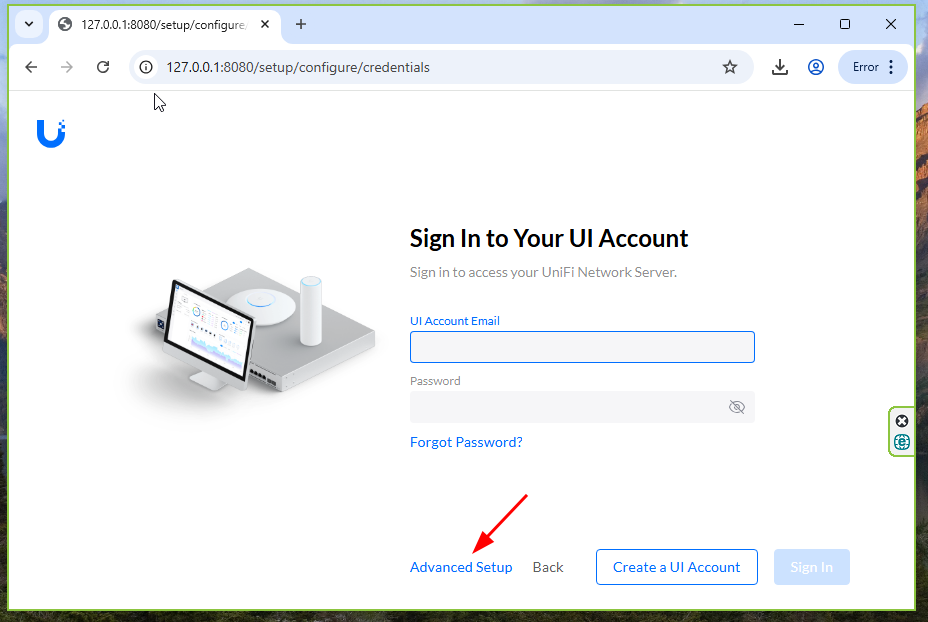
Next, you'll be prompted to log in with your UniFi account. This is an online account. If you don't have one or prefer not to create one, that's perfectly fine - it's not required! To create an offline account, click on 'Advanced Setup' and then click 'Skip' in the popup window.
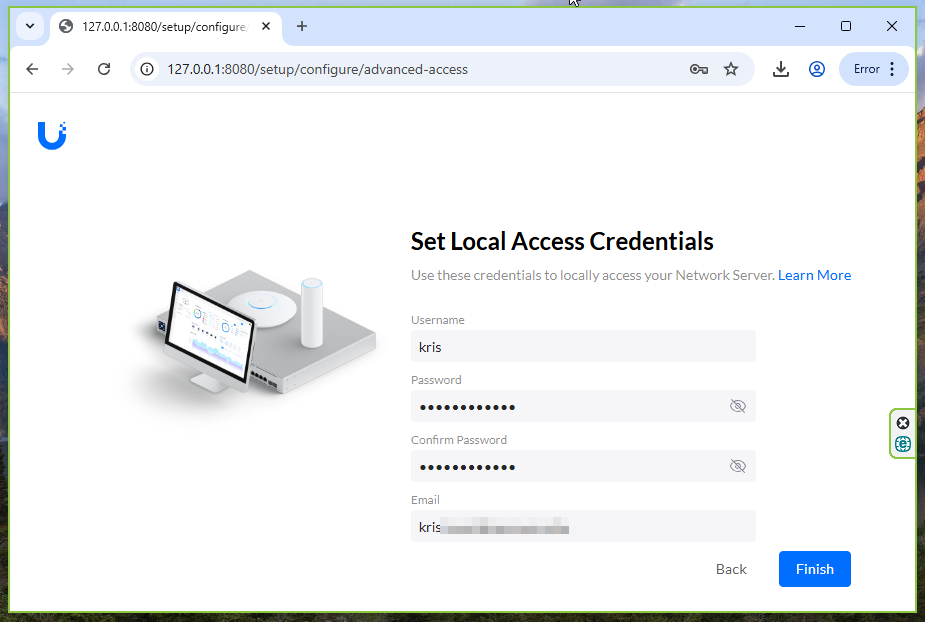
Choose a username (tip: use lowercase letters, no spaces or special characters), set a password, enter your email address, and then click 'Finish'.
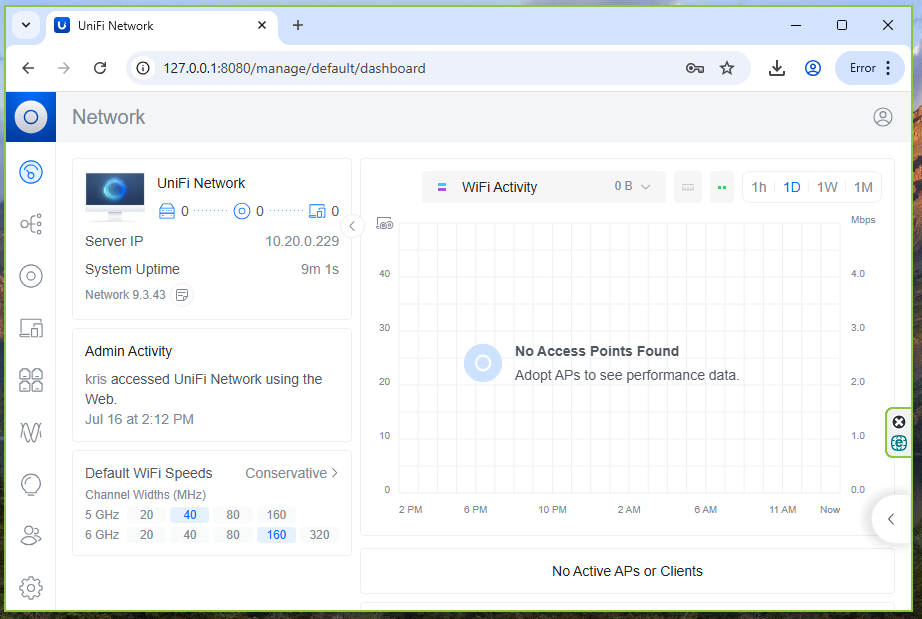
Congratulations! You're now successfully logged into your new UniFi Controller.
Secure Your UniFi Controller with an SSL Certificate
To avoid certificate errors, especially for users interacting with your guest portal or when accessing the controller's web interface, you'll need a valid SSL certificate. While setting this up can be a bit technical and is beyond the scope of this installation guide, we highly recommend acquiring a proper SSL certificate. Purchasing a certificate from a trusted provider is the most straightforward way to ensure a secure and error-free experience for both administrators and guest users.
Post-Installation Maintenance
Once your UniFi Controller is up and running, consistent maintenance is key to keeping your network stable and secure. This involves two main areas: backups and system updates.
Backup Strategy
A solid backup plan is crucial. Within the UniFi Controller interface, you can configure your backup schedule. We recommend performing daily backups.
However, simply backing up to the same server isn't enough. Ensure you:
- Write these backups to another server within your network.
- Store copies on an external, off-site location.
This process is best automated. Manually copying backups daily or even weekly to an external location is time-consuming and often forgotten.
Keeping Windows Up-to-Date
Maintaining your Windows installation's updates is just as important. You should minimally update your Windows system (whether it's a desktop or server installation) after Patch Tuesday (the second Tuesday of each month). Even better, aim for weekly updates.
Since Windows is generally more susceptible to malware than Linux, it's also highly recommended to deploy a robust security suite to protect your UniFi Controller server.